
25 Shopify Flow Examples: Real Workflows from a Shopify Agency (2026)

Most Shopify Flow guides describe workflows the way a recipe describes cooking: technically accurate, but useless until you've burned something in a real kitchen.
We've set up Shopify Flow automations for live stores and seen the difference between a plausible diagram and a dependable workflow. This guide explains the patterns, the trade-offs, and the places where a build still needs live verification.
What you'll find here: 25 workflow patterns organized by difficulty, from useful native automations to GraphQL mutations and bounded loops. Each pattern still needs to be checked against the store's plan, installed apps, current Flow fields, and operating policy before activation.
One thing worth clearing up before you start: Shopify Flow is available on paid Shopify plans. Individual actions, B2B features, and connector workflows can still depend on the merchant's plan or installed apps, so each workflow needs its own compatibility note.
Contents
- How Shopify Flow Works (The 60-Second Version)
- Beginner Flow Examples: Every Store Needs These
- Intermediate Flow Examples: For Growing Stores
- Advanced Flow Examples: Expert-Level Techniques
- From Ideas to Implementation
- When Not to Use Shopify Flow (The Honest Version)
- Testing and Debugging Shopify Flow Workflows
- Frequently Asked Questions
- Start With the Workflows That Matter
How Shopify Flow Works (The 60-Second Version)
Flow is Shopify's native no-code automation tool. Every workflow is built from three pieces.
The Three Building Blocks
Trigger: The event that starts the workflow. Flow watches for this event and evaluates the connected conditions. Examples include Order created, Product variant inventory quantity changed, and Scheduled time. The exact trigger list changes as Shopify and installed connector apps evolve.
Condition: Optional filters that must be true before the action runs. If conditions aren't met, Flow skips the workflow silently. Examples: Order total greater than $500, Customer tag does NOT contain "vip", Risk level equals HIGH.
Action: What happens when the trigger fires and conditions pass. Examples: Add tag, Send internal email, Update metafield, Send Admin API request (GraphQL), For Each (loop over a list).
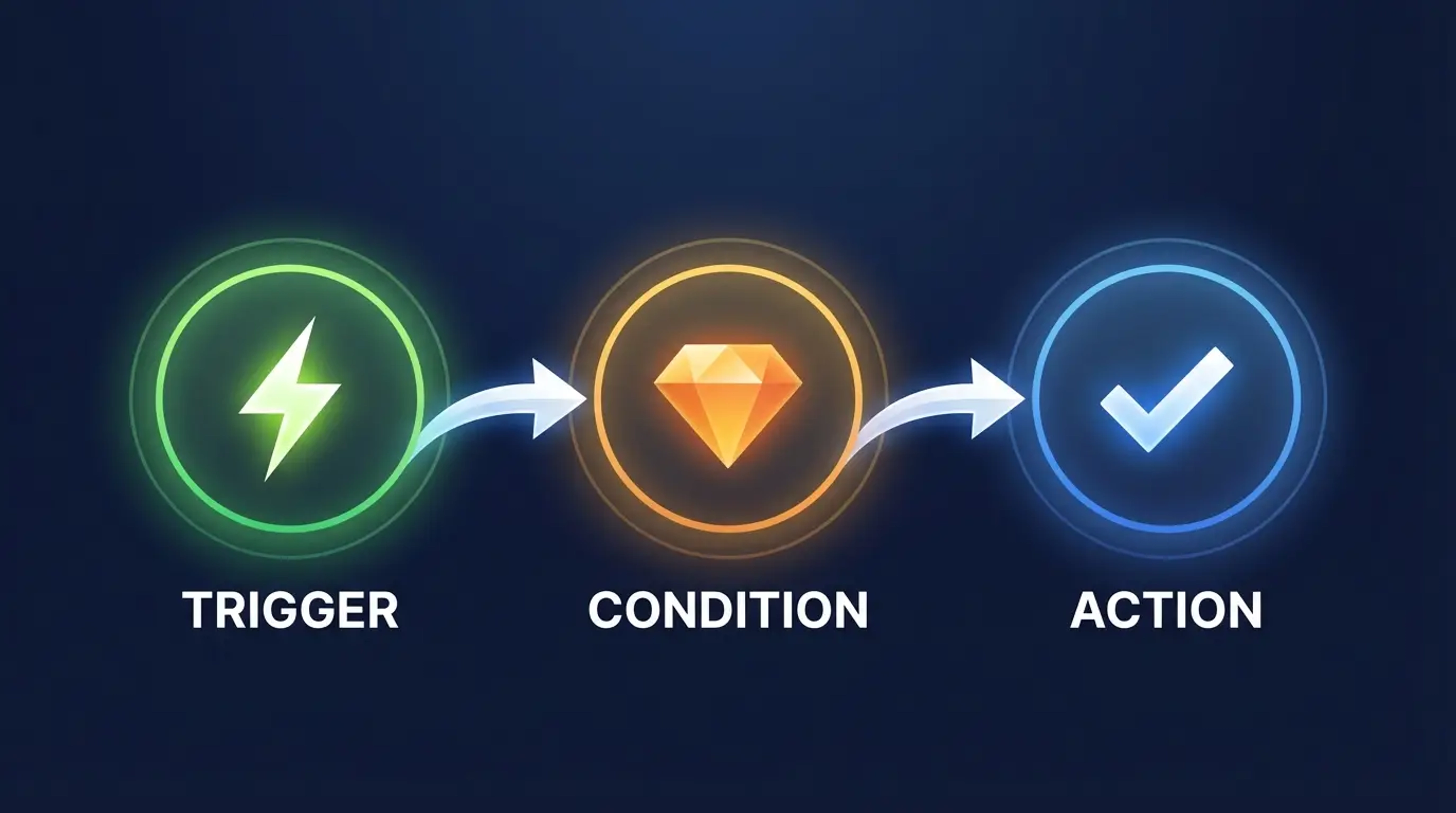
A simple pattern is: Order risk analyzed → Risk Level equals HIGH → Cancel Order + Tag Customer "fraud-blocked." Cancellation settings and the alternative review-first path still need to match the merchant's payment, refund, and fulfillment policy.
What Plan Do You Need?
| Feature | Basic Shopify | Shopify | Advanced | Shopify Plus |
|---|---|---|---|---|
| Shopify Flow app | ✓ Free | ✓ Free | ✓ Free | ✓ Free |
| Standard workflows | ✓ | ✓ | ✓ | ✓ |
| Connector apps (Klaviyo, Gorgias, etc.) | ✓ | ✓ | ✓ | ✓ |
| Shopify Messaging workflows | ✓ | ✓ | ✓ | ✓ |
| Shopify Collabs workflows | ✓ | ✓ | ✓ | ✓ |
| B2B and wholesale workflows | ✗ | ✗ | ✗ | ✓ |
Flow is no longer Shopify Plus-only, but that does not make every workflow plan-neutral. B2B features require Shopify Plus, while actions such as Send HTTP request and third-party connectors have their own plan and app requirements. Check the current dependency notes before building.
You can install Flow at admin.shopify.com/apps/flow. Shopify also maintains an official template library. Review each template's current dependencies and fields before activating it.
Beginner Shopify Flow Examples (Every Store Needs These)
These eight workflows are the foundation. If you're new to Flow, build these first. They cover the highest-impact, lowest-complexity automations. Most stores should have all of them running.
1. Low Inventory Alert
🟢 Beginner | Setup time: 5-10 minutes | 🏷️ Template available
The problem: Products go out of stock at 2am while you're asleep. By 9am you've missed two hours of sales and your customer service inbox has three "where's my order?" emails.
The setup:
- Trigger: Inventory quantity changed
- Condition 1: Prior inventory quantity is greater than or equal to 5
- Condition 2: Current inventory quantity is less than 5
- Action: Send internal email with product name, SKU, and current stock level
What the trigger actually fires on: Any inventory change for any variant. Without conditions, this fires every time stock changes, which could be dozens of times per day.
💡 Pro Tip: The dual condition is the key. "Prior quantity >= 5 AND Current quantity < 5" means this fires exactly once: when you cross the threshold from "above alert level" to "below alert level." It doesn't fire on every inventory move. No other guide on the SERP explains this correctly.
⚠️ Implementation Warning: If your store has multiple locations, this workflow fires per location. A product with 3 units in Chicago and 3 in Miami triggers twice, once for each location when that location dips below five. Add a location condition, or switch from per-location inventory to "total inventory" if your setup allows it.
Our Take: This is the single most universally useful Flow workflow. It takes under ten minutes and prevents the kind of revenue loss that quietly adds up to thousands per year. Build this before anything else.
2. Cancel and Tag High-Risk Orders
🟢 Beginner | Setup time: 10-15 minutes | 🏷️ Template available
The problem: Shopify's fraud analysis flags HIGH risk orders but doesn't act on them. They just sit there waiting for a human to review, or ship by default.
The setup:
- Trigger: Order created (or Payment captured, depending on your payment flow)
- Condition: Order risk level equals HIGH
- Action 1: Cancel order
- Action 2: Restock items
- Action 3: Send cancellation email to customer
- Action 4: Add tag to order: "high-risk-cancelled"
- Action 5: Add tag to customer: "fraud-flagged"
Variation for merchants who prefer a softer approach: Instead of auto-cancelling, hold payment capture and route to a review queue. Set up a second workflow: Order created → Risk equals HIGH → Add tag "fraud-review" + Send internal email to your ops team.
💡 Pro Tip: Add a second workflow layered on top of this one. Trigger: Customer tag added → Tag equals "fraud-flagged." Condition: Count of orders from this customer in last 30 days is greater than or equal to 3. Action: Add customer tag "fraud-blacklist." First-time offenders get auto-cancelled. Repeat offenders get blacklisted so every future order from that email gets caught automatically.
Our Take: Your fraud analysis score already did the work. This workflow just acts on it. The time savings compound fast on any store doing more than 50 orders per day.
3. Tag a Customer's First Order
🟢 Beginner | Setup time: 5 minutes | 🏷️ Template available
The problem: Your Klaviyo welcome series for first-time buyers only fires if you can identify first-time buyers. Flow handles the identification.
The setup:
- Trigger: Order created
- Condition: Customer orders count equals 1
- Action 1: Add tag to customer: "first-order"
- Action 2: Add tag to order: "first-order"
Tag the customer AND the order. The customer tag powers your Klaviyo welcome flow. The order tag makes first-order revenue filterable in your analytics and order exports.
💡 Pro Tip: If you're using Klaviyo, this Flow workflow removes your dependency on Klaviyo's native first-purchase sync. Klaviyo's integration is reliable but lags by a few minutes. Flow fires on order creation with essentially zero delay.
Our Take: Deceptively simple. This single workflow is the foundation of every first-purchase marketing flow we configure for clients. Five minutes of setup, years of payoff.
4. Hide and Republish Out-of-Stock Products
🟢 Beginner | Setup time: 10-15 minutes | 🏷️ Template available
The problem: Out-of-stock products rank in Google Shopping and generate ad spend, then send shoppers to a dead end. Auto-hiding them protects conversion rate and ad budget.
This requires two workflows working together.
Workflow 1 (Hide):
- Trigger: Inventory quantity changed
- Condition: Total inventory across all locations equals 0
- Action: Remove product from Online Store sales channel
Workflow 2 (Republish):
- Trigger: Inventory quantity changed
- Condition 1: Total inventory across all locations is greater than 0
- Condition 2: Product is currently not published (status = false)
- Action: Publish product to Online Store
⚠️ Implementation Warning: Backorders. If you run a backorder or pre-order strategy, products you want to keep visible will get hidden by Workflow 1. Add a condition: "Product tag does NOT contain 'backorder'." Without this exception, Flow will hide your pre-order products the moment they hit zero stock.
⚠️ Implementation Warning: Multi-location. "Total inventory across all locations equals 0" is critical. The simpler "Inventory quantity is less than 1" only checks the default location. A product with zero stock in Chicago but 12 units in Miami would get hidden by accident. Use the total inventory field, not the location-specific one.
Our Take: Clean implementation is harder than it looks. The two warnings above took us real-world troubleshooting to discover. The backorder gotcha alone has caught three separate clients.
5. Tag Orders by Sales Channel
🟢 Beginner | Setup time: 5 minutes | 🏷️ Template available
The problem: POS orders, online store orders, draft orders, and Buy Button orders all look the same in your order list. Separating them makes reporting, fulfillment routing, and analytics dramatically cleaner.
The setup (repeat for each channel you use):
- Trigger: Order created
- Condition: Sales channel equals "Point of Sale" (or "Online Store," "Draft Orders," "Buy Button")
- Action: Add order tag: "pos-order" (or "web-order," "draft-order," "buy-button-order")
Five variants cover most stores:
pos-orderfor POS salesweb-orderfor your online storedraft-orderfor manual ordersbuy-button-orderfor embedded Buy Button purchasessubscription-orderfor orders from Recharge, Skio, or similar
💡 Pro Tip: These tags persist on the order permanently. Set them up now and your entire order history becomes filterable by channel from the moment you activate.
Our Take: Five minutes to build. Every single client we've set this up for wonders how they managed without it. Operations teams and finance teams are the biggest beneficiaries.
6. Welcome New Customers with a Tag (or Email)
🟢 Beginner | Setup time: 10 minutes | 🏷️ Template available
The problem: New account registrations disappear into your customer list with zero action taken. First impressions compound.
Two variants here. Choose based on your email stack.
Variant A: Tag for Klaviyo (if you're using Klaviyo):
- Trigger: Customer created
- Action 1: Add customer tag: "new-customer"
- Action 2: Add customer tag: "welcome-email-pending"
Klaviyo picks up the "new-customer" tag and fires your welcome series. Clean, reliable, no additional config needed.
Variant B: Shopify Messaging (no Klaviyo required):
- Trigger: Customer created
- Action: Send Shopify Messaging email (branded transactional email from Shopify's native email delivery)
Shopify Messaging is a connector app built by Shopify that lets Flow send branded emails without any third-party email platform. It's genuinely new. None of the other articles on this topic cover it. If you're a smaller store that hasn't committed to Klaviyo, this gives you a welcome email capability at zero added cost.
When you're ready to evaluate your email platform choices, see our comparison of Shopify Email vs Klaviyo.
Our Take: Variant B is underutilized. Most merchants assume they need Klaviyo to send a welcome email from Flow. They don't.
7. Automated Collection Membership
🟢 Beginner | Setup time: 5-10 minutes | 🏷️ Template available
The problem: Manually adding products to collections when they receive a specific tag is tedious and easy to forget. Merchandising teams spend more time on admin than they should.
A safer setup:
- Trigger: Product added to store or Product status updated
- Condition: Product tags contains "summer-2026"
- Action: Add product to collection: "Summer 2026"
A tag changing by itself is not a dependable native trigger contract. If collection membership must follow every later tag edit, use a scheduled, tightly filtered reconciliation workflow or a connector that exposes the required event. Test removal behavior separately before relying on a reverse path.
💡 Pro Tip: This workflow pairs well with automated product imports. If your catalog feed adds tags for seasonal categorization, this Flow turns those tags into automatic collection membership. No human touch required.
Our Take: Small workflow, large operational payoff. Merchandising teams running seasonal campaigns update one tag per product instead of manually managing collection membership. That scales well as catalog size grows.
8. POS Restock Alert
🟢 Beginner | Setup time: 10-15 minutes
The problem: In-store sales bypass your normal inventory monitoring. A busy Saturday can drain a key SKU at your POS location without triggering your standard low-inventory alert, because the POS sale hits inventory differently than online orders do in some configurations.
The setup:
- Trigger: Product variant inventory quantity changed
- Condition 1: Inventory location equals the selected POS location
- Condition 2: Quantity crosses from at or above the threshold to below it
- Action: Send internal email to the buyer or location manager with SKU, product name, location, and current stock
⚠️ Implementation Warning: This workflow requires you to scope the inventory condition to the specific POS location, not total inventory across all locations. A SKU might be low at your retail store but fully stocked in your warehouse. The alert should be location-specific or your buyer will chase phantom shortages.
Our Take: Retail and omnichannel merchants need this running. Warehouse replenishment cycles and in-store sell-through rates move at different speeds. This closes the gap.
Intermediate Shopify Flow Examples (For Growing Stores)
These nine workflows require more logic: multiple conditions, app integrations, or cross-object data. They're where Flow starts saving serious time. Most take 20-60 minutes to configure correctly.
9. Customer Lifetime Spend Tiers (VIP Segmentation)
🟡 Intermediate | Setup time: 20-30 minutes
The problem: Loyalty programs need to know who your best customers are. Manual tier assignment doesn't scale.
The setup (build one workflow per tier):
Tier 1 ($500+):
- Trigger: Order payment captured
- Condition: Customer lifetime spend is greater than or equal to 500
- Action: Add customer tag: "vip-tier-1"
Tier 2 ($1,000+):
- Trigger: Order payment captured
- Condition: Customer lifetime spend is greater than or equal to 1000
- Action: Add customer tag: "vip-tier-2," Remove customer tag: "vip-tier-1"
Tier 3 ($2,500+):
- Trigger: Order payment captured
- Condition: Customer lifetime spend is greater than or equal to 2500
- Action: Add customer tag: "vip-tier-3," Remove customer tags: "vip-tier-1," "vip-tier-2"
⚠️ Implementation Warning: Flow's "Customer lifetime spend" field is Shopify's native sum of all paid orders, not a custom field you configure. Do not confuse this with "Customer orders count." We've seen implementations built with "Order count greater than 5." That tags frequent buyers, not high spenders. A customer who buys 10 $15 items is not the same as a customer who bought two $600 orders. Use lifetime spend.
💡 Pro Tip: Add a reverse workflow for refunds. When a large refund drops a customer below a tier threshold, remove the tier tag. This keeps your VIP list accurate and prevents a $2,500 customer from staying in Tier 3 after returning $2,000 of merchandise.
Our Take: Klaviyo can segment on lifetime spend too, but the tags Flow creates here persist everywhere in Shopify: customer list, order admin, discount code eligibility checks. Both tools benefit from each other here.
10. Fraud Review Before Payment Capture
🟡 Intermediate | Setup time: 20-30 minutes
The problem: For stores using manual payment capture, you need to distinguish clean orders (capture immediately) from gray-area orders (review first) without a human touching every transaction.
The setup (two workflows):
Auto-capture for low-risk orders:
- Trigger: Order risk analyzed
- Condition: Order risk level equals LOW
- Condition: Payment is authorized, eligible, and not already captured
- Action: Capture payment
Hold and flag for medium-risk:
- Trigger: Order risk analyzed
- Condition: Order risk level equals MEDIUM
- Action 1: Add order tag: "fraud-review"
- Action 2: Add internal order note: "Medium risk: manual review required before capture"
- Action 3: Send internal email to fraud@yourdomain.com with order details
Our Take: This is a more controlled version of the blunt "cancel everything HIGH risk" workflow. Instead of a binary cut, it creates separate paths for eligible low-risk authorizations, medium-risk review, and high-risk handling. Test every payment state before activation.
11. Serial Returner Alert
🟡 Intermediate | Setup time: 30 minutes
The problem: Some customers abuse return policies. You don't find out until you've shipped them five orders, accepted five returns, and paid five-way return shipping.
This requires two workflows working together.
Workflow 1 (Flag on new order):
- Trigger: Order created
- Condition: Customer tag contains "serial-returner"
- Action 1: Add internal order note: "Flagged: serial returner. Review before fulfilling."
- Action 2: Send email to ops team with order details
Workflow 2 (Identify a return pattern for review):
- Trigger: Refund created or another verified returns-app event
- Action: Increment a controlled customer metafield or send the event to a returns system that maintains the time-bounded count
- Condition: The verified count crosses the merchant's review threshold
- Action: Add a review tag and notify the ops team
Shopify Flow does not expose a universal rolling customer return count as a ready-made field. Keep the time window and counting logic in a verified data source, then let Flow apply a review tag and surface future orders for human review.
Our Take: Treat this as a review signal, not an automatic accusation. Document the source of the count, the time window, false-positive handling, and who can remove the tag.
12. Rush Order and Expedited Fulfillment Routing
🟡 Intermediate | Setup time: 20-30 minutes | 🏷️ Template available
The problem: Customers who pay for overnight or express shipping expect it to be handled differently. If your fulfillment team processes all orders the same way, expedited orders get discovered during normal batch picking. Too late.
The setup:
- Trigger: Order created
- Condition: Shipping rate title contains "Express" OR Shipping rate title contains "Overnight"
- Action 1: Add order tag: "rush"
- Action 2: Send email to fulfillment@yourdomain.com with order number and shipping method
- Action 3: Add internal order note: "RUSH ORDER: expedited fulfillment required"
Variation for 3PL partners: Replace the email action with a webhook action that POST-notifies your 3PL's system directly with order data. Most modern 3PLs expose a webhook endpoint for this.
💡 Pro Tip: Add a Slack notification action if your fulfillment team uses Slack. Real-time channel alert beats email when someone needs to act within the hour. The Slack connector app for Flow handles this natively.
Our Take: Express shipping customers paid a premium for speed. This workflow ensures that premium is actually delivered. Without it, rushed orders get discovered too late and you're issuing refunds on the shipping cost.
13. Win-Back Campaign Trigger (Klaviyo Integration)
🟡 Intermediate | Setup time: 30-45 minutes
The problem: Customers who haven't ordered in 90 days need a win-back email sequence. Flow identifies the right customers; Klaviyo handles the email logic.
The setup:
- Trigger: Scheduled time
- Action 1: Get customer data with a strict query for the target inactivity window and an idempotent exclusion tag
- Condition: Customer is eligible for the current win-back cycle
- Action 2: Add customer tag: "at-risk-winback"
Klaviyo's Shopify integration watches for tag changes. When "at-risk-winback" appears on a customer profile, Klaviyo fires your win-back sequence automatically.
⚠️ Implementation Warning: Scheduled Get data actions return a bounded result set, so use an exact date window, a processed marker, and explicit cap-hit behavior. Test the query and re-entry rules with synthetic customers before activation.
For a full breakdown of which email platform handles post-Flow customer journeys best, see our Klaviyo Alternatives guide and our roundup of the best email marketing tools for Shopify.
Our Take: Flow's job here is simple: apply the tag at the right moment. Klaviyo does the rest. The two tools have distinct responsibilities, and this workflow is a clean example of that division working correctly.
14. Post-Purchase Review Request (Timed After Fulfillment)
🟡 Intermediate | Connector-dependent and idempotency-sensitive
The problem: Most review request setups trigger X days after purchase. That means customers buying ground shipping with a 7-day delivery window get a review request for an order that hasn't arrived yet.
The fix: Start from a verified fulfillment event, then prevent split or partial fulfillments from creating duplicate requests.
The setup (with Yotpo or Judge.me connector):
- Trigger: Order fulfilled when full fulfillment is the intended boundary, or a verified connector event with an idempotency marker
- Action 1: Wait 7 days
- Action 2: Re-check eligibility after the wait, then invoke one named review-platform action
Without a connector app:
- Trigger: Order fulfilled
- Action 1: Wait 7 days
- Action 2: Re-check eligibility and confirm the order does not already have the request marker
- Action 3: Add order tag: "review-request-pending"
- Let Klaviyo pick up the tag change and handle the email
💡 Policy Choice: If the merchant wants a minimum order-value condition, document the threshold, currency behavior, product exclusions, and customer-experience rationale. Treat it as a policy decision rather than a universal review rule.
Our Take: Fulfillment is a better starting boundary than purchase, but it is not the same as confirmed delivery. Document split-fulfillment behavior, the post-wait eligibility check, consent, and the connector that actually sends the request.
15. Subscription Customer Tagging (Recharge and Skio)
🟡 Intermediate | Setup time: 20-30 minutes
The problem: Subscription-first Shopify brands need to distinguish subscription orders from one-time purchases. Without the distinction, your entire segmentation and email strategy treats subscribers and one-timers identically.
The native setup:
- Trigger: Subscription contract created or Subscription contract updated
- Condition: The contract state matches the lifecycle state the tag is meant to represent
- Action: Add or remove the controlled customer tag only when the trigger exposes the required customer resource
Recharge or Skio variant:
- Trigger: Use the connector's exact current subscription-created, updated, paused, or cancelled event
- Condition: Map the connector's verified status value
- Action: Update controlled tags and notify the retention team through a named action
💡 Connector Warning: Do not assume Recharge, Skio, or another subscription app emits the same trigger, tag, or status value. Publish separate connector-specific variants and preserve the exact event semantics used in testing.
Our Take: Keep Shopify-native subscription contracts and connector-specific events as separate variants. The customer tag is useful only when its source, lifecycle, and removal behavior are explicit.
16. Shopify Markets and Multi-Currency Order Tagging
🟡 Intermediate | Setup time: 10-15 minutes
The problem: International orders processed through Shopify Markets require different handling: currency conversion documentation, regional fulfillment routing, and separate reporting. Mixed in with domestic orders, they're invisible until something breaks.
The setup:
- Trigger: Order created
- Condition: Select the exact live field needed for the rule: presentment currency, shop currency, market, or country. They are not interchangeable.
- Action 1: Add a controlled lowercase market or currency tag
- Action 2: Guard any country-based branch against orders without a shipping address
Expanded version for region-specific routing:
- Condition: Shipping address country equals "GB"
- Action: Add tag "uk-order" + Send notification to UK fulfillment partner
💡 Pro Tip: Build one workflow per major market rather than one generic "international" workflow. Your UK fulfillment team and your EU fulfillment team need different information. Currency tagging plus country-based routing gives you clean separation without custom development.
Our Take: This pattern stays conditional until the exact market, currency, and country fields are confirmed in the current Flow variable picker and tested with domestic, cross-border, local-currency, and draft-converted orders.
17. Scheduled Daily Fulfillment Summary
🟡 Intermediate | Setup time: 30-45 minutes | Introduction to For Each
The problem: Your ops team needs to start each morning knowing which orders from yesterday aren't fulfilled yet. The current process: manual export, filter, email. Every day.
The setup:
- Trigger: Scheduled time (daily at 8:00 AM)
- Action 1: Get orders (filter: created at is yesterday, fulfillment status equals unfulfilled)
- Action 2: Send one internal email and loop over the returned order list inside the email's Liquid template
- Action 3: Include an explicit note when the 100-resource result cap may have been reached
This workflow combines the Scheduled time trigger with Get order data and a Liquid-rendered internal email. The Get data action returns at most 100 resources per call, so a production version needs a narrow query and a visible cap warning.
💡 Pro Tip: This is where Flow shifts from reactive (responding to events) to operational (proactively surfacing information your team needs). Most merchants only use reactive Flow. The scheduled plus For Each combination is where the real ops leverage lives.
Our Take: Build this after you've got the basics running. It requires understanding Get Data and For Each, which take a bit longer to configure correctly. But the payoff is real: eliminating a daily manual export compounds over every single weekday.
18. Warranty Registration via Metafield
🟡 Intermediate | Setup time: 30-45 minutes
The problem: Warranty-eligible products need a registration record tied to each order. Manually tracking warranty start dates and expiration windows in a spreadsheet is both error-prone and unscalable.
The setup:
- Trigger: Order paid
- Condition: Any line item has product tag "warranty-eligible"
- Action 1: Use the native Update order metafield action to record registration and calculate the expiration value with a supported Liquid date expression
- Action 2: Send Shopify Messaging email to customer confirming their warranty period and registration details
Native metafield setup: Define the order metafields first, then map the order resource into Flow's Update order metafield action. Use a boolean registration marker and a date/date-time value for the order date or verified expiration date. A custom Admin API mutation is unnecessary for this pattern.
⚠️ Implementation Warning: Keep the registration marker idempotent and verify the exact date expression in Flow. If a customer email is part of the design, treat the connector, consent, and delivery behavior as a separate dependency.
Our Take: For brands with physical products carrying manufacturer warranties, this closes a documentation gap that typically lives in spreadsheets or third-party warranty apps. The order metafield persists in Shopify permanently and is queryable by your team or customer-facing theme.

Advanced Shopify Flow Examples (Expert-Level Techniques)
These workflows use For Each, selected GraphQL mutations, and scheduled batch operations. They need tighter query limits, idempotency controls, and failure handling than the examples above.
If you're a developer or technically-minded merchant, this section is for you. The beginner and intermediate sections above will serve most stores well on their own.
19. For Each: Bulk Customer Tier Update (Scheduled Weekly)
🔴 Advanced | Scheduled, bounded batch
The problem: Your VIP customer tiers update when each order fires, which means customers who crossed a tier threshold last week but haven't ordered since never get re-evaluated. Weekly customers get timely updates. Infrequent big spenders don't.
The fix: A weekly scheduled workflow that evaluates a tightly filtered, bounded customer set.
The setup:
- Trigger: Scheduled time (for example, every Sunday)
- Action: Get customer data with a precise query and a versioned processed marker. One call returns at most 100 customers, so this is not a full-store sweep.
- Action: For Each customer in the list:
- Condition A: If customer lifetime spend is greater than or equal to 2500, add tag "vip-tier-3," remove tags "vip-tier-1" and "vip-tier-2"
- Condition B: Else if lifetime spend is greater than or equal to 1000, add tag "vip-tier-2," remove tag "vip-tier-1"
- Condition C: Else if lifetime spend is greater than or equal to 500, add tag "vip-tier-1"
⚠️ Implementation Warning: Coverage. Get customer data returns at most 100 resources per call, and For Each only iterates that returned list. Use a narrow query, a processed/version marker, and explicit cap-hit monitoring. Do not describe one run as full-store coverage.
⚠️ Implementation Warning: Re-entry. If another workflow reacts to these tier tags, define a terminal processed marker and conditions that prevent the two workflows from retriggering each other.
💡 Pro Tip: Use a versioned marker such as "tier-evaluated-2026-09" rather than a marker that another workflow must clear. That makes reruns idempotent and preserves an audit trail.
Our Take: This is the workflow that reveals Flow's real operational power. Reactive triggers are useful. Scheduled bulk operations on a defined customer set are how ops teams actually run stores at scale.
20. End-of-Day Inventory Exception Report
🔴 Advanced | Scheduled safety net
The problem: A real-time hide/republish workflow can miss edge cases caused by imports, integrations, or incomplete product rules. A nightly check can surface those exceptions without making unsafe catalog-wide publication changes.
The safer setup:
- Trigger: Scheduled time
- Action: Get product data with a narrow query for active products that may have no sellable inventory
- Action: Send one internal exception report for human review
- Action: Mark reviewed records with a dated or versioned tag only when the merchant approves that behavior
⚠️ Implementation Warning: Get data actions return at most 100 resources. A variant-level result also does not prove that every other variant and location for the same product is out of stock. Do not convert this into an automatic unpublish sweep without a complete product-level rule.
Our Take: Keep Workflow 4 as the controlled real-time publication workflow. Use this pattern only to surface reconciliation exceptions and cap hits.
21. Flag Final-Sale Items in Return Requests
🔴 Advanced | Returns review pattern
The problem: A return request may include one final-sale line among otherwise eligible items. An automatic whole-return decision can be wrong in either direction.
The safer setup:
- Trigger: Return requested, or the verified equivalent from the installed returns app
- Condition: At least one requested line maps to a product marked final sale
- Action: Add an order tag and send an internal review alert naming the affected line
- Action: Cancel the whole return only when the store's policy and every requested line support that result
⚠️ Implementation Warning: Native Flow actions may not support declining one line while approving another. Partial decisions need a returns app or custom API path that explicitly supports them.
Our Take: Flow is useful for classification and routing here. Keep the customer-facing decision conservative until the exact return action and partial-return behavior are proven.
22. Update Customer Metafield on Order Creation
🔴 Advanced | Native metafield action
The use case: When an order is created for a known customer, write a controlled value to a customer metafield for downstream segmentation or theme logic.
The setup:
- Trigger: Order created
- Condition: A customer record exists and the intended source value is present
- Action: Update customer metafield
- Configuration: Select the existing definition, set the value from verified Flow fields, and define what happens when a value already exists
⚠️ Implementation Warning: Use Flow's native metafield action when it supports the target. Do not paste an Admin API endpoint, access-token header, or private credential into the workflow. If a native action does not cover a mutation, select a supported mutation inside Send Admin API request and provide only its JSON inputs.
See Shopify's Update customer metafield documentation and the Send Admin API request reference.
Our Take: Metafields are useful when a typed value needs to be read predictably by a theme or another system. Define ownership, overwrite behavior, and rollback before activation.
23. Controlled Historical Order Tag Update
🔴 Advanced | Bounded batch pattern
The use case: You ran a promotion with discount code "SUMMER25." Now you need to tag all orders from the last 30 days that used that code for reporting, but those orders already exist. Real-time triggers only catch new events.
The setup:
- Small known set: Select matching orders from a filtered resource view and run a workflow whose trigger supports manual execution from selected resources
- Larger set: Use Scheduled time with a strict Get order data query
- Action: For each returned order, add the tag with a native tag action
- Safety: Exclude orders that already have a versioned processed tag and define what happens when the 100-result cap is reached
⚠️ Implementation Warning: Get data actions return at most 100 resources per call. A batch that can exceed that limit needs a deterministic window, an idempotent processed marker, and an explicit continuation plan. Never assume For each provides full-store coverage.
Our Take: Historical updates are migrations, not casual automations. Preview the exact target set, preserve existing tags, test a small fixture, and keep a rollback list.
24. First-Time Discount Code Abuse Detection
🔴 Advanced | Setup time: 1-2 hours
The problem: First-order discount codes like "WELCOME10" get shared publicly and abused by repeat customers using new email addresses.
Conservative review signal:
- Trigger: Order created
- Condition 1: Discount code equals "WELCOME10" (or contains "WELCOME")
- Condition 2: Customer orders count is greater than 1
- Action 1: Add order tag: "discount-abuse-suspected"
- Action 2: Add customer tag: "discount-abuser"
- Action 3: Send internal alert email to your fraud team
Honest limitation: This catches only a repeat purchase on the same customer record. It does not prove intent and will not reliably connect different customer accounts. Address, identity, or device matching creates privacy and false-positive risks and belongs in a purpose-built fraud system.
Our Take: Perfect detection is probably not worth the dev time for most stores. The simple version handles the clear cases. Flag it, review it, act on patterns. Don't let perfect be the enemy of good here.
25. B2B Net Payment Terms Reminder Sequence
🔴 Advanced | Setup time: 1-2 hours | 🏷️ Shopify Plus required
The setup: B2B merchants on Shopify Plus using native payment terms need reminders aligned to Shopify's payment schedule.
- Trigger: Payment schedule is due
- Condition: The schedule remains unpaid and belongs to a company using native Shopify B2B payment terms
- Action: Send payment reminder
- Action: Notify the internal AR owner when the merchant's escalation policy requires it
⚠️ Critical Implementation Warning: This workflow only functions if you're using Shopify's native B2B payment terms. If you're using a custom invoicing solution (Invoice Hero, QuickBooks integration, a third-party billing tool), the payment status field in Shopify won't update when the invoice is paid elsewhere. The workflow will keep sending reminders for orders that have already been settled in your external system. Verify your B2B payment workflow uses Shopify's native payment terms before building this. If you're on a hybrid setup, you need a custom integration to sync payment status back to Shopify first.
Our Take: Use the due-schedule event rather than recreating invoice timing with long waits. Check Shopify Admin's own reminder settings so customers do not receive duplicates.

From Ideas to Implementation
Use each example as a starting point, then confirm the current Flow trigger, action, required fields, dependencies, and failure behavior in a development store before relying on it.
When Not to Use Shopify Flow (The Honest Version)
Shopify won't publish this section. Mesa won't publish it either. They want you to upgrade to their paid tool. We don't sell Flow and we don't sell an alternative. So we can tell you when Flow isn't the right answer.
Flow Can't Do These Things
| What You Want | Why Flow Can't | What to Use Instead |
|---|---|---|
| Trigger on page views or browse behavior | Flow has no storefront event triggers | Klaviyo (pixel tracking) |
| Real-time dynamic pricing at checkout | Flow actions run async, not at checkout | Shopify Functions |
| Complex conditional discounts at checkout | No checkout trigger in Flow | Shopify Functions + discount API |
| Long multi-month nurture email sequences | Wait actions are limited; Flow isn't a CRM | Klaviyo Flows |
| Long-running or complex external API orchestration | Send HTTP request exposes response data, but requests have a short timeout and bounded retry behavior | Custom app or integration platform |
| True parallel execution (do A and B simultaneously) | Flow actions run sequentially only | Custom app |
| Complex calculations or stateful processing | Run code supports constrained logic but has no network, clock, or random access and has execution limits | Run code for bounded logic; custom app for larger jobs |
| Native SMS notifications | Flow doesn't send SMS | Klaviyo, Postscript, or Attentive |
| Cross-store data syncing | Flow is per-store, no native cross-store capability | Custom app or API |
| Act on webhook responses | Flow can fire webhooks, can't act on the response | Custom app |
The 100-Action Workflow Limit
Flow workflows cap at 100 actions per run. You won't hit this on standard reactive workflows. You can hit it on complex looping workflows that process large data sets. The solution: break complex workflows into multiple linked workflows, where the last action in Workflow A triggers the start of Workflow B.
When Klaviyo Flows Beat Shopify Flow
- Email nurture sequences with A/B testing: Klaviyo
- Browse abandonment (requires pixel-level storefront tracking): Klaviyo
- Post-purchase flows with dynamic product recommendations: Klaviyo
- Complex multi-branch customer journeys over weeks or months: Klaviyo
The rule we use with clients: if it involves email content and customer journey logic, use Klaviyo. If it involves Shopify data operations (tagging, order management, metafield writes, internal notifications), use Flow. They're not competing tools. They are complementary tools with different strengths.
For a deeper comparison of the email tools that pair best with Flow, see Klaviyo vs Omnisend and Best Email Marketing for Shopify.
When to Build a Custom App Instead
- You need external requests that exceed Flow's timeout, retry, or response-handling boundaries
- You need stateful or compute-heavy logic beyond Run code limits
- You need true real-time execution (Flow has delays of seconds to minutes)
- You're syncing data across multiple Shopify stores
- Your logic exceeds what 100 actions can cover
Our Take: Flow is genuinely excellent at what it does. Shopify-native, event-driven automation with a clean visual builder and zero monthly cost. The mistake is treating it as a general-purpose automation platform. Know its edges and you'll never be disappointed by it.
Testing and Debugging Shopify Flow Workflows
This is where otherwise sensible workflow diagrams become dependable—or fail quietly.
Before You Activate: Use Flow's Test Feature
Every workflow in the Flow editor has a "Test" button. It simulates a trigger event and runs your conditions to show you whether the workflow would fire or skip. Use it before activating anything.
The limitation: Test mode evaluates your conditions but doesn't execute the actions. It won't actually send an email, add a tag, or fire an API request. For that, you need a real test event.
For real testing: Create a test order that matches your trigger conditions exactly. Let it fire. Then check the run history to confirm every step executed correctly. Use a test product and a test customer. Do not run live orders through an untested workflow.
Reading the Run History
Go to the Flow app, open your workflow, and click the "Run history" tab. Every time the workflow evaluates a trigger event, it logs an entry. Each entry shows one of three statuses:
- Success: The workflow ran and all actions completed
- Skipped: The trigger fired but conditions didn't match, so the workflow did nothing
- Error: A step failed (action misconfigured, connector app offline, API rate limit hit)
"Skipped" is the most common confusion point for new Flow users. They activate a workflow, create an order, nothing happens, and they assume the workflow is broken. It's almost always a condition that didn't match. Check run history before spending 30 minutes looking for a bug that isn't there.
Common Reasons a Workflow Doesn't Fire
| Symptom | Likely Cause | Fix |
|---|---|---|
| Run history shows "Skipped" | Conditions didn't match the test event | Review each condition; check exact field values and comparisons |
| Run history shows "Success" but tag doesn't appear | Action targeted wrong object (order vs. customer) | Check action settings; confirm you're tagging the right entity |
| Workflow fires but email isn't received | Email in spam or wrong address in action | Check spam folder; verify email address configured in action |
| For Each workflow times out or runs partially | List too large for single run | Add tighter filters to your Get Data action |
| Connector app action fails consistently | App token expired or app not installed on store | Reinstall or reconnect the connector app; refresh OAuth token |
| Workflow worked for two weeks, now stops | Run limit reached or connector auth expired | Check run limit settings; re-authenticate connector |
| Workflow fires but GraphQL action returns error | API scope missing or malformed mutation | Check custom app permissions; validate mutation syntax |
The Meta-Workflow: Monitor Flow Errors
One of the most useful things you can build in Flow is a workflow that monitors itself. In the Flow trigger list, look for "Workflow run resulted in an error" as your trigger type.
- Trigger: Workflow run resulted in an error
- Action: Send email to yourself with workflow name, error type, and timestamp
This creates a basic monitoring path. When a workflow reports an error, the owner can inspect the run history instead of waiting for an operational symptom. Confirm that the error trigger and notification fields are available in the current store before relying on it.
💡 Pro Tip: Name your workflows with a clear convention. "Orders: Cancel High Risk v2 (Active)" is better than "Untitled workflow 3." When you have 20+ workflows running and one starts producing errors, clear names cut your debugging time in half.
Frequently Asked Questions
Are Shopify Flow examples free?
Shopify provides Flow and an official template library for paid Shopify plans. Some workflows depend on Shopify Plus features or paid third-party connector apps, so confirm the plan and dependency notes before installation.
Do I need Shopify Plus for Shopify Flow?
No. Flow is available on paid Shopify plans, but individual actions and features can have narrower plan requirements. B2B workflows require Shopify Plus; HTTP actions and connector workflows need their own compatibility checks.
Where can I get Shopify Flow examples as a PDF?
Shopify's official template library is available inside the Flow app at admin.shopify.com/apps/flow. This guide explains patterns and trade-offs; our separate workflow library packages documentation-backed recipes, official starter links, and expected-behavior cases without presenting them as executed workflows.
What is the best Shopify Flow example?
Low-inventory alerts and risk-analysis routing are useful starting patterns because they use native events and actions. Their exact setup time and safety depend on inventory scope, cancellation policy, payment capture, and the store's test fixtures.
What can Shopify Flow not do?
Flow is not a storefront event tracker, checkout extension, full CRM, or general-purpose compute platform. Send HTTP request can expose response data, and Run code can handle constrained logic, but both have strict boundaries. Connector apps or custom development are still needed for many cross-system, real-time, or stateful jobs.
How do I find Shopify Flow templates?
Open the Shopify Flow app in your admin, click "Templates," and browse by category. You can also use Shopify's official workflow examples documentation and templates supplied by installed connector apps.
Does Shopify Flow work with Klaviyo?
Yes. Klaviyo is one of Flow's connector apps. You can trigger Klaviyo events from Flow (add a customer to a list, fire a custom event, update a profile property) and use Klaviyo's Shopify integration to respond to Flow-triggered customer tags. The standard agency pattern: Flow handles data operations and tagging, Klaviyo handles email content and sequencing. See Shopify Email vs Klaviyo for more on when to use each.
How do I loop through orders in Shopify Flow?
Use For each with Get order data when each returned order needs its own action. Get data returns at most 100 resources per call, so use a narrow query, a processed marker, and explicit cap-hit behavior. For one summary email, loop through the returned list inside the email's Liquid template instead.
Start With the Workflows That Matter
The best Shopify Flow setup isn't 25 workflows running simultaneously. It's five or six workflows you actually built correctly and test regularly.
Start with one workflow whose trigger, action, and rollback you can verify safely. Run positive, negative, duplicate, boundary, and failure cases against synthetic data before adding complexity.
Published February 21, 2026. Updated September 22, 2026. This guide explains workflow patterns; it is not a substitute for checking the current Flow editor, dependencies, and run behavior in a development store.
We love working with ambitious Shopify brands.
We can help optimize your store's conversion rate and increase sales.
We can create custom apps that integrate third-party services or add new features to your store.
We can create any theme customization you need to improve the look and feel of your brand.
Get in Touch
Written by
Alex is the founder of AESYMMETRIC, a Shopify agency specializing in conversion rate optimization, custom app development, and theme customizations. With eight years of experience in the Shopify ecosystem and e-commerce industry, he helps brands maximize sales and reduce costs through data-driven strategies and innovative technical solutions.